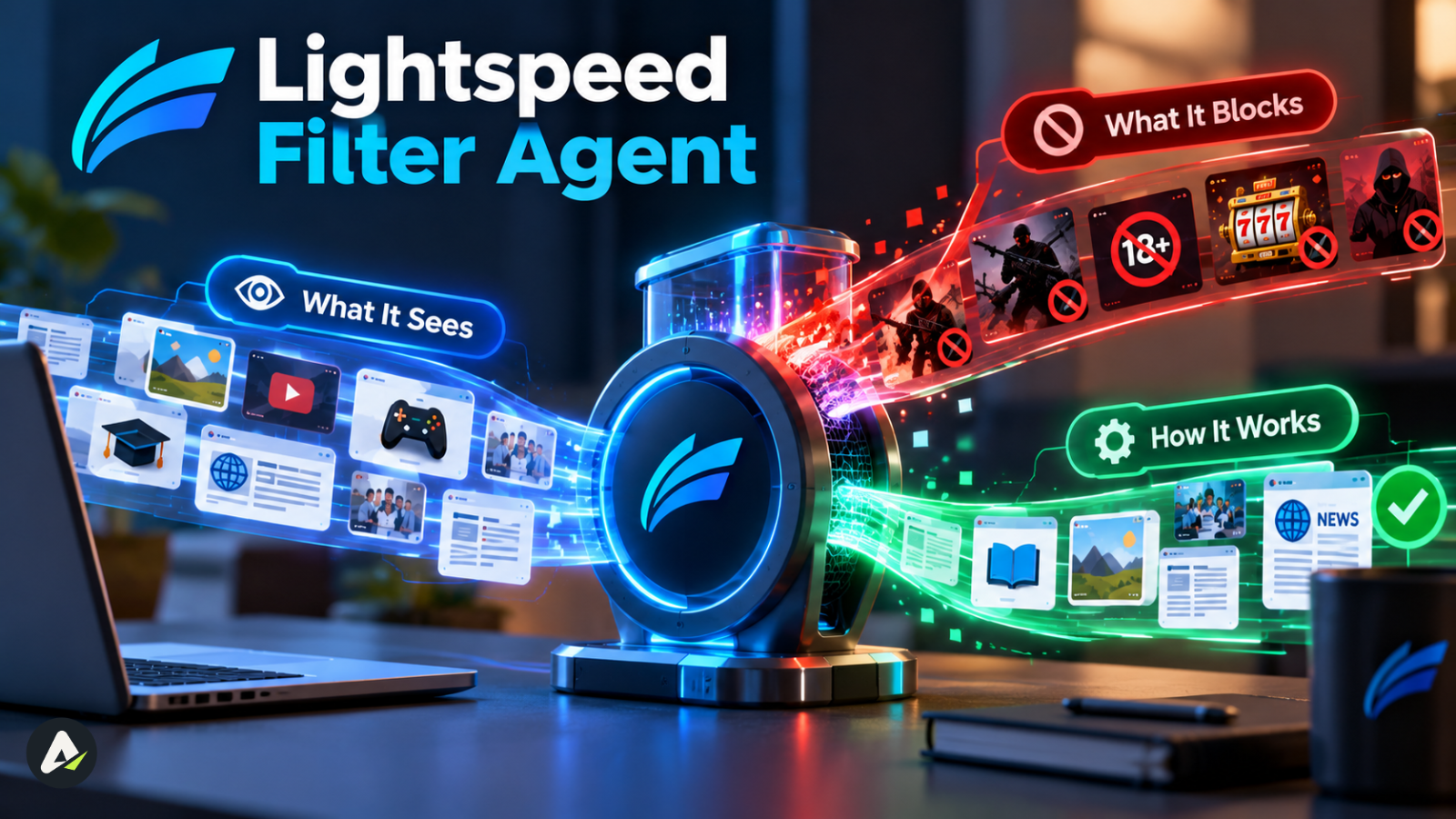
Lightspeed Filter Agent: What It Sees, What It Blocks & How It Works
What can the Lightspeed Filter Agent actually see and what can't it see? This 2026 guide explains how Lightspeed filtering works, whether it tracks browsing at home, what happens in Incognito, why safe sites get blocked.

In this article · 28 sections +
- Quick Answers
- Lightspeed Filter vs. Filter Agent vs. Classroom vs. Alert
- What Is the Lightspeed Filter Agent?
- Why Do Schools Use It?
- Supported Devices and How Filtering Works
- On-Device Agents vs. DNS-Only Filtering
- How Does the Lightspeed Filter Agent Function?
- What Can the Lightspeed Filter Agent See?
- What Can It NOT See In Lightspeed Filter Agent
- Can Lightspeed See Your Screen?
- Can Lightspeed See What You Type?
- Can Lightspeed See Your Files?
- Can Lightspeed See Incognito Browsing?
- Does Lightspeed Work at Home?
- What Happens on a Personal Device?
- Can Lightspeed Filter Agent Be Installed on a Personal Computer?
- How to Check Whether Lightspeed Is Installed
- What Can Lightspeed Filter Block?
- Does Lightspeed Block ChatGPT and Other AI Tools?
- Why Does Lightspeed Block Safe Websites?
- How to Get a Blocked Site Reviewed: The SEE Method
- Lightspeed Filter Agent Not Working? Try This
- “Your Connection Is Not Private” Errors
- Can You Remove or Bypass the Lightspeed Filter Agent?
- What Can Parents See in the Lightspeed Parent Portal?
- Is the Lightspeed Filter Agent Spyware?
- What’s New in Lightspeed Filter in 2026?
- FAQs
The Lightspeed Filter Agent is school-managed software that decides which websites load on a school laptop, Chromebook, or iPad. It filters web traffic on the device itself, so in supported setups it keeps working at home. It is not Lightspeed Classroom, the separate tool teachers use to view screens.
What a student sees depends on the device, the operating system, which Lightspeed products the district runs, the district’s policy, the student’s group, the network, and whether the device is on or off campus. This guide applies that rule to visibility, blocking, and getting a site reviewed. It’s written for students, parents, teachers, and IT staff, and it reflects Lightspeed’s products as of October 2026.
Quick Answers
| Question | Short answer |
|---|---|
| What is it? | The on-device part of Lightspeed Filter that checks and controls web access on school-managed devices |
| Can it see your screen? | No. Live screen viewing comes from Lightspeed Classroom |
| Can it see your browsing history? | It can record web activity on managed devices when the district turns on reporting |
| Does it work at home? | Yes, on managed devices where the district enables off-campus filtering |
| Does Incognito hide activity? | No. Incognito doesn’t make a school-managed device private |
| Why are safe sites blocked? | Category rules, automatic classification of new sites, embedded content, schedules, or lockouts |
| Can students remove it? | No. District administrators control school-managed devices |
Lightspeed Filter vs. Filter Agent vs. Classroom vs. Alert
Most confusion about Lightspeed comes from treating several products as one. Each one does a different job:
| Product | What it does | Who it affects |
|---|---|---|
| Lightspeed Filter | The district’s overall web-filtering product | Everyone on district devices or Wi-Fi |
| SmartAgent / Filter Agent | Enforces Filter rules on the device itself | Students on school-managed devices |
| SmartShield | DNS-based filtering for devices without an agent | Personal phones and smart devices on school Wi-Fi |
| Lightspeed Classroom | Lets teachers view screens, open or close tabs, and lock devices | Students during class |
| Lightspeed Alert | Flags signs of self-harm, violence, or bullying for staff review | Students on monitored accounts |
| Insight / Parent Portal | Reporting, screen time and after-school family controls | Districts and families |
The difference people care about most:
| Feature | Filter Agent | Classroom | Alert |
|---|---|---|---|
| Blocks websites | Yes | Limited (teachers can close or limit tabs) | No |
| Logs web activity | Yes | Session activity | Safety signals only |
| Live screen viewing | No | Yes | No |
| Teacher controls | No | Yes | No |
| Safety alerts | No | No | Yes |
| Works off campus | On supported deployments | District-dependent | District-dependent |
What Is the Lightspeed Filter Agent?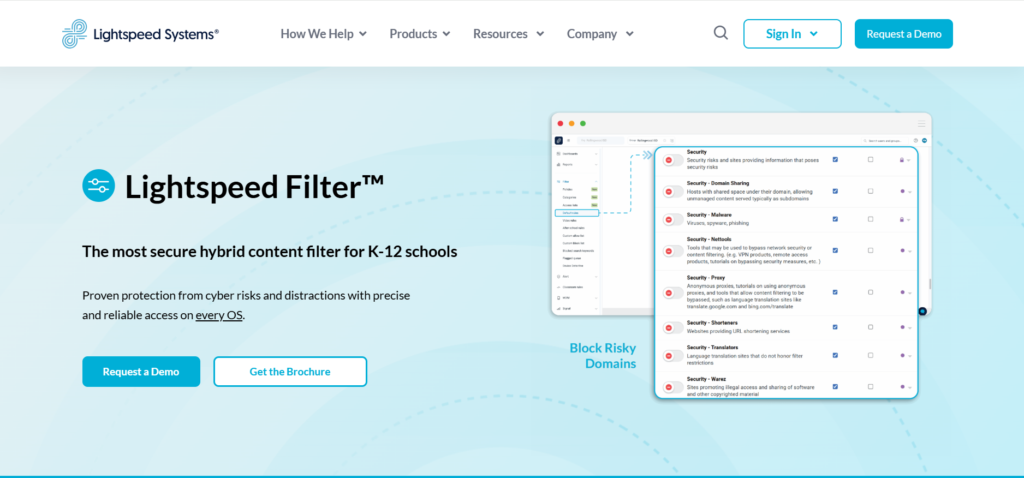
The Lightspeed Filter Agent is the on-device component of Lightspeed Filter, a K-12 web filter from Lightspeed Systems. Districts install it on school-owned devices to block harmful or distracting sites and, depending on settings, to record browsing on and off campus.
Lightspeed calls this component a SmartAgent. On Windows, it appears in installed apps as “Lightspeed Filter Agent.” On Chromebooks, it usually runs as a managed Chrome extension the student can’t switch off.
- The word “agent” trips people up. The Filter Agent doesn’t plan tasks or pursue goals the way AI agents that reason and act on their own do. It follows older software usage: a background program that carries out an administrator’s rules on a device. It applies policy. It never chooses it.
Why Do Schools Use It?
In the US, the Children’s Internet Protection Act (CIPA) requires schools and libraries that receive E-Rate discounts to filter obscene images and material harmful to minors. Districts treat filtering as a funding condition, not an optional extra, which explains why they lock the Filter Agent down so tightly.
Supported Devices and How Filtering Works
| Platform | Typical implementation |
|---|---|
| ChromeOS | Managed Chrome extension |
| Windows | SmartAgent app |
| macOS | SmartAgent app |
| iOS / iPadOS | SmartAgent deployed through device management (MDM) |
| Personal devices (BYOD) on school Wi-Fi | SmartShield (DNS) |
| Smart devices (IoT) on school Wi-Fi | SmartShield (DNS) |
On-Device Agents vs. DNS-Only Filtering
Parents and board members often compare Lightspeed with other school filters. The bigger difference lies in how a filter works, not whose logo it carries:
| Approach | How it works | Strengths | Limits |
|---|---|---|---|
| On-device agent (Lightspeed SmartAgent and similar agents) | Software runs on the device and inspects web requests | Filters specific pages, searches, and videos; works off campus | Requires device management |
| DNS-only filtering (SmartShield and DNS-layer services) | Checks domain lookups before a connection starts | Light, needs no software install, covers any device on the network | Sees domains, not specific pages; stops at the network edge |
How Does the Lightspeed Filter Agent Function?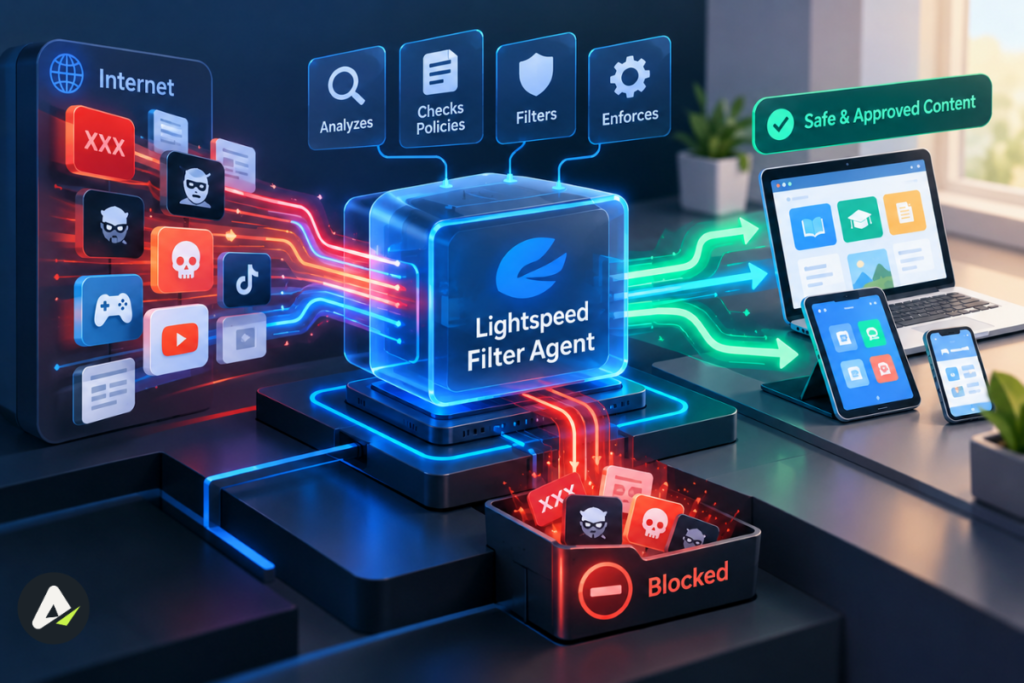
The agent checks each web request on a managed device against the district’s policy and Lightspeed’s content database, then allows or blocks it. Exact behavior varies by operating system and configuration.
- It identifies the user. Policies sync from Google Workspace, Active Directory or Microsoft 365, so rules can differ by grade or group.
- It inspects the request. On supported platforms, SmartAgent performs SSL inspection on encrypted (HTTPS) traffic. That lets the filter act on specific Google searches and YouTube videos, not only whole domains.
- It applies the rule. The page loads or a block page appears, and district reports may record the visit.
For IT readers: HTTPS inspection on school devices works, conceptually, as authorized man-in-the-middle inspection. The district owns the device and authorizes the filter to read traffic before it reaches the browser. Lightspeed says administrators don’t need to manage proxy servers, PAC files or trust certificates. The exact implementation varies by platform and deployment, so check Lightspeed’s current admin documentation for your version. Sites that break under inspection can go on an SSL exclusion list, which keeps that traffic encrypted.
Dynamic classification: Lightspeed doesn’t rely only on static blocklists. It uses machine learning to classify unrecognized URLs in real time, which is why the filter sometimes blocks brand-new sites before anyone has reviewed them.
Bypass detection: Lightspeed also advertises live bypass detection that analyzes browser behavior and tunneling or proxy techniques, not only the destination address.
What Can the Lightspeed Filter Agent See?
The Filter Agent sees web traffic on the device it runs on. District settings decide what it records and who can view it.
| Question | Answer |
|---|---|
| Can it see websites you visit? | Yes, when the district enables reporting |
| Can it see blocked attempts? | Yes, in admin reports |
| Can it see Google searches? | Potentially, when SSL inspection and search reporting are on |
| Can it see YouTube activity? | Potentially, depending on configuration |
| Can it see activity at home? | Yes, on managed devices with off-campus filtering |
| Can parents see it? | Only if the district enables Parent Portal features |
| Can teachers see it? | Depends on Classroom and the district’s setup |
Lightspeed says decryption powers search-term and video reports in the district dashboard, so assume staff can review searches made on a school device.
What Can It NOT See In Lightspeed Filter Agent
Can Lightspeed See Your Screen?
No, not through the Filter Agent. Live screen viewing comes from Lightspeed Classroom. In Fairfax County, a school technology specialist told a student paper that teachers can view student screens in real time. At another school, a student paper reported that teachers could still see screens after class when they forgot to end the session. Both cases involve Classroom, not the Filter Agent.
Can Lightspeed See What You Type?
Lightspeed’s Filter materials don’t describe keystroke logging as a Filter Agent function. The agent can capture searches you submit, because they travel as web requests. Other tools a district runs, such as Lightspeed Alert, analyze content for safety signals, so ask your district which products it uses.
Can Lightspeed See Your Files?
Lightspeed doesn’t describe file access as a Filter Agent function. The agent filters and logs web traffic.
Can Lightspeed See Incognito Browsing?
Incognito doesn’t make a school-managed device private. Google notes that admins can’t automatically install extensions in Incognito, so districts that want managed extensions to stay in force on ChromeOS typically disable Incognito entirely. On Windows and Mac, the agent filters at the device level, so private mode hides history from the browser, not from the filter.
Does Lightspeed Work at Home?
| Device | Network | Can Lightspeed apply? |
|---|---|---|
| School Chromebook or laptop | School Wi-Fi | Yes |
| School Chromebook or laptop | Home Wi-Fi | Yes, if the district enables off-campus filtering |
| Personal laptop | Home Wi-Fi | Generally no |
| Personal laptop signed into a managed Chrome profile | Home Wi-Fi | Potentially, inside that profile |
| Personal phone | School Wi-Fi | Potentially, through SmartShield (DNS) |
| Personal phone | Home Wi-Fi | Generally no |
On school devices at home, the agent enforces policies on the device itself, with configurable off-campus rules and no VPN required.
Districts often switch off live screen viewing at home. One Ohio district says it limits Classroom monitoring to school grounds and hours under the state’s SB 29 notice rules, while filter records can still be kept.
What Happens on a Personal Device?
Can Lightspeed Filter Agent Be Installed on a Personal Computer?
Three scenarios cover almost every case:
- School-owned, managed computer: District policies apply.
- Personal computer with a managed Chrome profile: Signing into Chrome with a school account can bring district policies and force-installed extensions, including Lightspeed’s, into that browser profile.
- Personal computer without school management or a managed profile: School filtering generally doesn’t control the device.
The account follows you, not the laptop. IT teams apply the same principle when they tie access controls to an identity rather than a device: permissions move with the account. To keep school rules out of personal browsing, use a separate Chrome profile for school, or sign into school sites through the website without turning on Chrome sync. Ask your IT team about your district’s policy on non-school devices.
How to Check Whether Lightspeed Is Installed
In Chrome (any computer):
- Open
chrome://management. If Chrome says it’s “Managed by your organization,” an administrator controls the browser or profile. - Open
chrome://extensionsand look for a Lightspeed extension marked as installed by your administrator.
On Windows: Open Settings > Apps and search for “Lightspeed Filter Agent.” Also check Settings > Accounts > Access work or school for a school connection.
On Mac: On macOS 13 or later, open System Settings > General > Device Management to find installed management profiles.
On a school Chromebook: Look for the managed-device notice in the system tray, then check the Extensions page. An extension’s name alone won’t tell you every Lightspeed component the district runs.
What Can Lightspeed Filter Block?
Districts can set rules by category, user, group, and schedule. Depending on configuration, the filter can block or limit:
- Whole domains, categories or specific URLs
- Search terms and search results
- YouTube videos and channels, plus distracting elements such as Shorts, comments, and sidebars
- Social platforms such as TikTok, Discord and Instagram
- AI tools
- Proxy and bypass services
- Embedded content that loads from a blocked domain
Does Lightspeed Block ChatGPT and Other AI Tools?
It can. Districts can allow or block AI tools by category, so ChatGPT, Gemini, and similar assistants often fall under a single policy decision. Some districts block AI sites outright, others allow approved tools, and Parent Portal lets families limit AI tools during homework hours where the district enables it.
An educational AI tool can still get blocked because the rule targets the category, not the specific use. Expect these policies to tighten as more products move from chat-based AI tools to autonomous AI agents that browse, click, and submit forms for the user. A tool that acts on a student’s behalf raises different questions than one that only answers prompts.
Why Does Lightspeed Block Safe Websites? 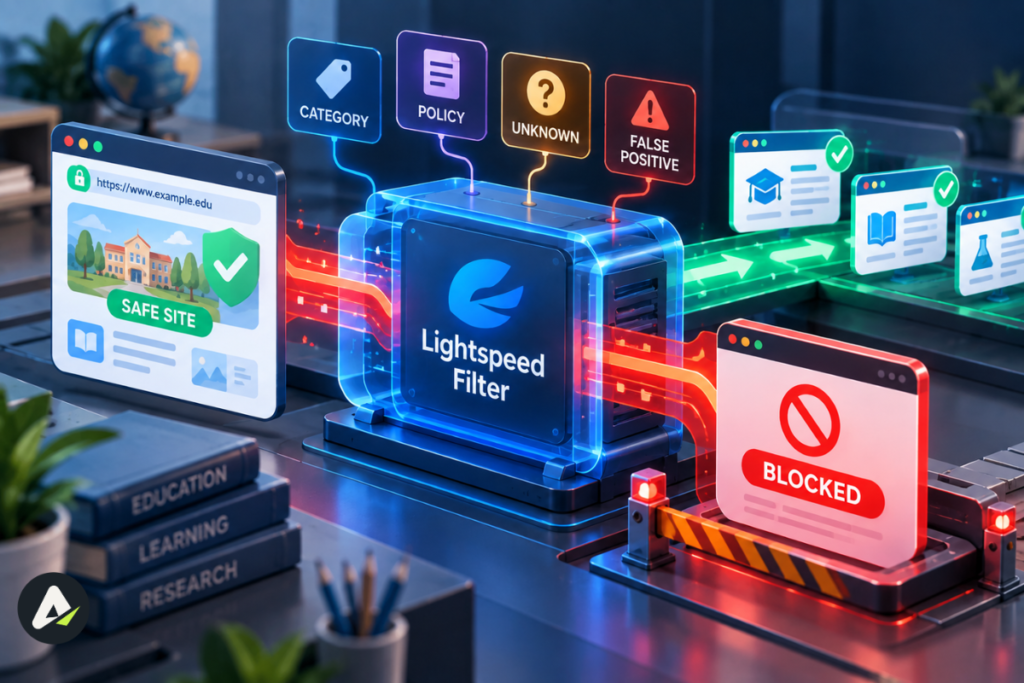
A blocked site isn’t necessarily one Lightspeed considers harmful. The usual causes:
- Category spillover. A learning site with games may sit in a blocked “Games” category.
- Unknown or new sites. Automatic classification can block sites nobody has reviewed yet.
- Embedded content. The district allows the page, but a video or widget loads from a blocked domain.
- Lockouts. Repeated attempts can trigger a timed internet lockout.
- Schedules. At home, a parent’s homework or bedtime schedule may be active.
One student on Microsoft Q&A complained that the agent blocked neal.fun, a site of interactive science toys. That’s a typical category call, not a judgment that the site is dangerous.
Your block page might show:
Block Category: GamesReason: Dynamic AI ClassificationThe category name tells you which rule fired. “Dynamic AI Classification” means the site wasn’t in the database, so the filter classified it automatically.
How to Get a Blocked Site Reviewed: The SEE Method
| Step | What to do | Example |
|---|---|---|
| Scope | Copy the exact URL, time, device, and category shown | “neal. fun, blocked as Games, 7:40 pm, school Chromebook” |
| Explain | Give the learning reason in one sentence | “Needed for Friday’s physics assignment” |
| Escalate | Ask your teacher first, then the help desk | Teachers can vouch for a site, which speeds approval |
Copy and send this request:
Subject: Request to review blocked websiteURL:
Date/time:
Block category:
Class/assignment:
Why the site is needed:Some districts give teachers user-level control over students’ filtering, so a teacher can sometimes allow a site during the lesson. IT handles permanent changes.
Lightspeed Filter Agent Not Working? Try This
If the agent seems offline, isn’t blocking, blocks everything, or shows a blank page:
- Shut down fully instead of closing the lid.
- Check the network and finish any Wi-Fi sign-in page.
- Check the date and time, because a wrong clock breaks certificate validation.
- Install updates for ChromeOS, Chrome, or Windows.
- Report the problem with the URL, time, and a screenshot, using the SEE format.
“Your Connection Is Not Private” Errors
Students and teachers: This message usually points to a browser or network problem, and it differs from a Lightspeed block page, which carries Lightspeed branding and often names the category. Some sites also fail under SSL inspection until IT adds an exclusion. Take a screenshot either way.
Admins: These errors typically appear when SSL inspection fails on a device. Confirm the agent is running and up to date, check the device clock, and decide whether the failing site needs an SSL exclusion. Lightspeed’s current admin documentation covers platform-specific certificate handling.
Can You Remove or Bypass the Lightspeed Filter Agent?
Not in a way schools allow. Lightspeed protects its agents from uninstallation, and Lightspeed’s bypass detection watches for proxy and tunneling behavior. On ChromeOS devices with forced re-enrollment turned on, which Google enables by default, a factory reset doesn’t remove the school’s management: the device re-enrolls and the policies return.
Bypass attempts can get logged, can trigger a lockout, and can break your acceptable use policy. Free proxy “unblockers” also carry a real malware risk. Encrypted-DNS settings and VPNs don’t reliably defeat a filter that runs on the device itself.
If the agent shows up on a personal computer, use the steps in the installation-check section above to find the school connection or profile. Some setups need administrator rights or the school’s help to remove.
What Can Parents See in the Lightspeed Parent Portal?
If the district turns it on, the Parent Portal lets families:
- Review after-school web activity with timestamps
- Pause browsing and set internet schedules and custom block lists, including limits on AI tools during homework hours
- View screen time, a feature Lightspeed made generally available on July 15, 2026, for districts that also run Lightspeed Insight and SmartSync
Parent-set restrictions generally apply outside school hours, while district filtering policies stay under district control. The exact controls depend on how the district configures Parent Portal.
Student privacy: In the US, the Family Educational Rights and Privacy Act (FERPA) protects student education records, and many states add their own student-privacy laws. Districts decide who can access Lightspeed data and how long they keep it, so check your district’s privacy or technology policy.
Is the Lightspeed Filter Agent Spyware?
Districts deploy it as filtering and safety software, openly, on devices they own and under published policies. That doesn’t make it invisible. Depending on configuration, it enforces filtering and creates activity records staff can review. Anything beyond web activity depends on which other Lightspeed tools a district runs, such as Classroom or Alert. Students and families who want specifics should ask the district what it collects, who can view it, and how long it keeps it.
What’s New in Lightspeed Filter in 2026?
- Parent controls (2026): After-school schedules, block lists, and category controls arrived in the Parent Portal.
- Screen time (July 15, 2026): Daily averages and in-school versus after-school breakdowns reached general availability for eligible districts running Insight and SmartSync.
- AI-tool controls: Districts and parents can manage AI tools by category.
- Dynamic AI classification: The filter analyzes unclassified sites in real time instead of waiting for manual review.
- Live bypass detection: Lightspeed analyzes browser behavior and tunneling techniques, not only destination URLs.
FAQs
Q. What does the Lightspeed Filter Agent do?
It enforces a district’s web-filtering rules on school-managed devices, allowing or blocking each site and recording visits when reporting is on.
Q. Can schools see your screen with Lightspeed?
Only through Lightspeed Classroom, not the Filter Agent. Many districts limit Classroom to school hours.
Q. Can parents see Lightspeed history at home?
Yes, if the district enables the Parent Portal. Families can then review after-school web activity.
Q. Does Lightspeed track Incognito history?
Incognito doesn’t hide activity on a school-managed device. Districts often disable it on Chromebooks, and device-level filtering on Windows and Mac still applies.
Q. How do you bypass the Lightspeed filter?
Schools don’t permit it, the agent resists removal, and attempts can get logged. The SEE method gets a blocked site reviewed instead.
Q. How do I get a website unblocked on a school Chromebook?
Copy the URL, time, and category, add one sentence on why you need it, and send it to your teacher, then the help desk.
Q. Is there a Lightspeed Filter Agent download for families?
No. Schools deploy the agent through Google Admin, Group Policy, or an MDM. Families who want home filtering need a consumer parental-control app.
Q. Does Lightspeed work on a personal device at home?
Generally no, unless the device is enrolled in school management or you browse inside a managed school Chrome profile.
Q. How much does Lightspeed Filter cost?
Lightspeed doesn’t publish prices. Districts request a quote for annual licenses based on size and bundled products.
Related: Lendflow AI Agents: How Lending Automation Works in 2026
| Disclaimer: This guide is for informational purposes and is not affiliated with, endorsed by, or sponsored by Lightspeed Systems. Features, policies, pricing, and monitoring capabilities can vary by district, device, and configuration. Always check your school’s current technology and privacy policies for the rules that apply to you. |

Maliha
AI is moving steadily from experimental technology into the products and workflows people rely on every day. Maliha Irfan is a technology writer covering artificial intelligence, automation, and emerging software. Her work focuses on the practical side of AI agents, exploring how these systems are being used, what they can realistically accomplish, and the limitations that matter when businesses and individuals adopt them.
More from Maliha →