Can Home Assistant Assist Replace Google Assistant and Alexa in 2026?
Learn how Home Assistant Assist works, what it costs, how to set it up, and whether it can replace Google Assistant or Alexa.

In this article · 19 sections +
- Which Voice Setup Fits Your Hardware?
- What Is Home Assistant Assist, and What Is It Used For?
- Is Home Assistant Free to Use?
- How Does Home Assistant Voice Control Work?
- Does Assist Listen All the Time, and Where Does Your Voice Go?
- How Fast Is Assist, and What Slows It Down?
- Did the 2026.11 Naming Change Break Your Voice Commands?
- What Commands Can You Say to Assist?
- How Do You Set Up Assist in Home Assistant?
- How Do You Use Home Assistant Assist on Android?
- How Do You Use Home Assistant Assist on iPhone?
- Is There a Home Assistant Assist App, and How Do You Launch It Fast?
- What Is Home Assistant Voice?
- Can Assist Talk Like ChatGPT or Gemini?
- How Can You Access Home Assistant Remotely for Free?
- Can Assist Replace Alexa?
- Is Google Assistant Free, and How Does It Compare?
- What Limits and Risks Should You Know Before Relying on Assist?
- FAQs
Running everything on one machine needs Home Assistant OS, because the speech engines install as apps inside it. You can also offload the heavy parts: the Wyoming integration lets Whisper and other services run on another computer on your local network, so a Green or Pi hosts Home Assistant while a stronger PC does the speech work. A local AI model adds more load, so size the machine that runs it. Whisper pays off mainly when paired with an AI agent on powerful hardware.
Which Voice Setup Fits Your Hardware?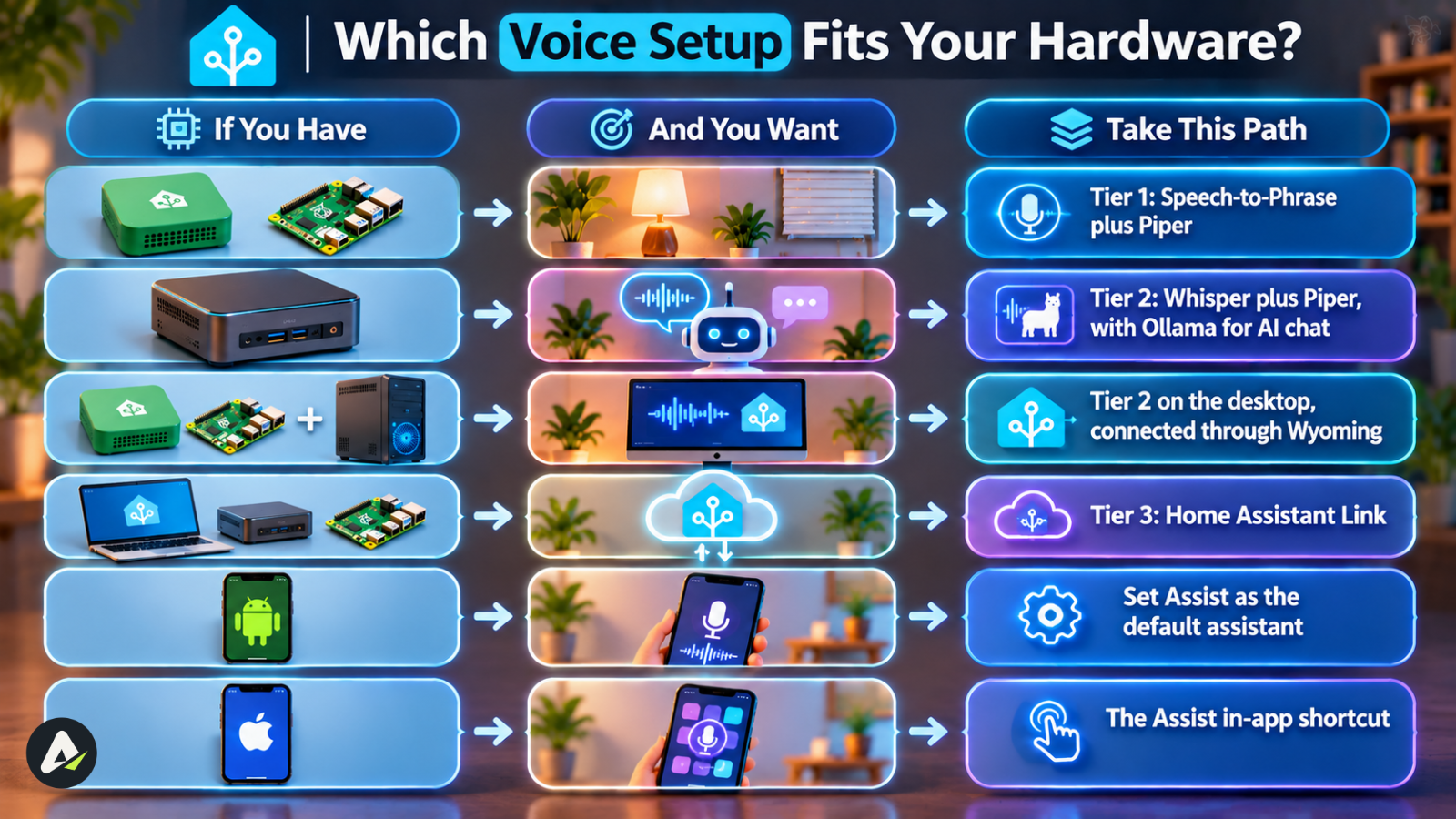
| If you have | And you want | Take this path |
|---|---|---|
| Home Assistant Green or a Raspberry Pi 4 | Dependable light, climate, and media commands | Tier 1: Speech-to-Phrase plus Piper |
| A mini PC, N100 class or better | Free-form speech or a local AI model | Tier 2: Whisper plus Piper, with Ollama for AI chat |
| A Green or Pi plus a spare desktop | Whisper without slowing Home Assistant | Tier 2 on the desktop, connected through Wyoming |
| Any hardware, and no wish to run speech software | The fastest setup | Tier 3: Home Assistant Link |
| An Android phone | A Google Assistant replacement | Set Assist as the default assistant |
| An iPhone | A one-tap launch | The Assist in-app shortcut |
Language support varies. About 80 languages are listed, each rated from not supported to fully supported, separately for local and Link processing. Check yours before you buy anything, because quality swings a lot.
Google began removing Assistant from Android phones on September 4, 2026, and many people now want a voice option that doesn’t hinge on one company’s cloud. Assist, the voice assistant built into Home Assistant, is that option. You type or speak to it, and the whole pipeline can run on hardware you own, so audio never leaves your house. The software is free; the optional extras are a Nabu Casa subscription (Home Assistant Link) and dedicated voice hardware.
Phones, wall tablets, and dedicated speakers can all act as the microphone and speaker, so you choose the room and the device.
This guide covers costs, commands, Android and iPhone setup, shortcuts, the hardware local voice demands, and free remote access. Every detail was checked in November 2026 against version 2026.11.2, including the 2026.11 naming change that turns your old entity names into voice aliases.
What Is Home Assistant Assist, and What Is It Used For?
Assist turns plain sentences, typed or spoken, into actions: controlling devices, checking their status, setting timers, and running automations.
Assist isn’t a separate product. It arrived in Home Assistant 2023.2, ships switched on, and sits behind an icon at the top right of the dashboard. The community writes its sentences for dozens of languages.
Most people use it for lights, blinds, thermostats, media players, timers, shopping lists, and the weather. Power users add custom sentences that trigger any automation, or plug in an AI model for open-ended questions. A few reliable commands need little setup, while a chatty companion needs much more. That gap shapes every choice below.
Is Home Assistant Free to Use?
Yes. Home Assistant is free, open-source software with no subscription and no paywalled features. You pay only for what surrounds it: a machine to run it, plus an optional Nabu Casa subscription and optional accessories like Voice Preview Edition.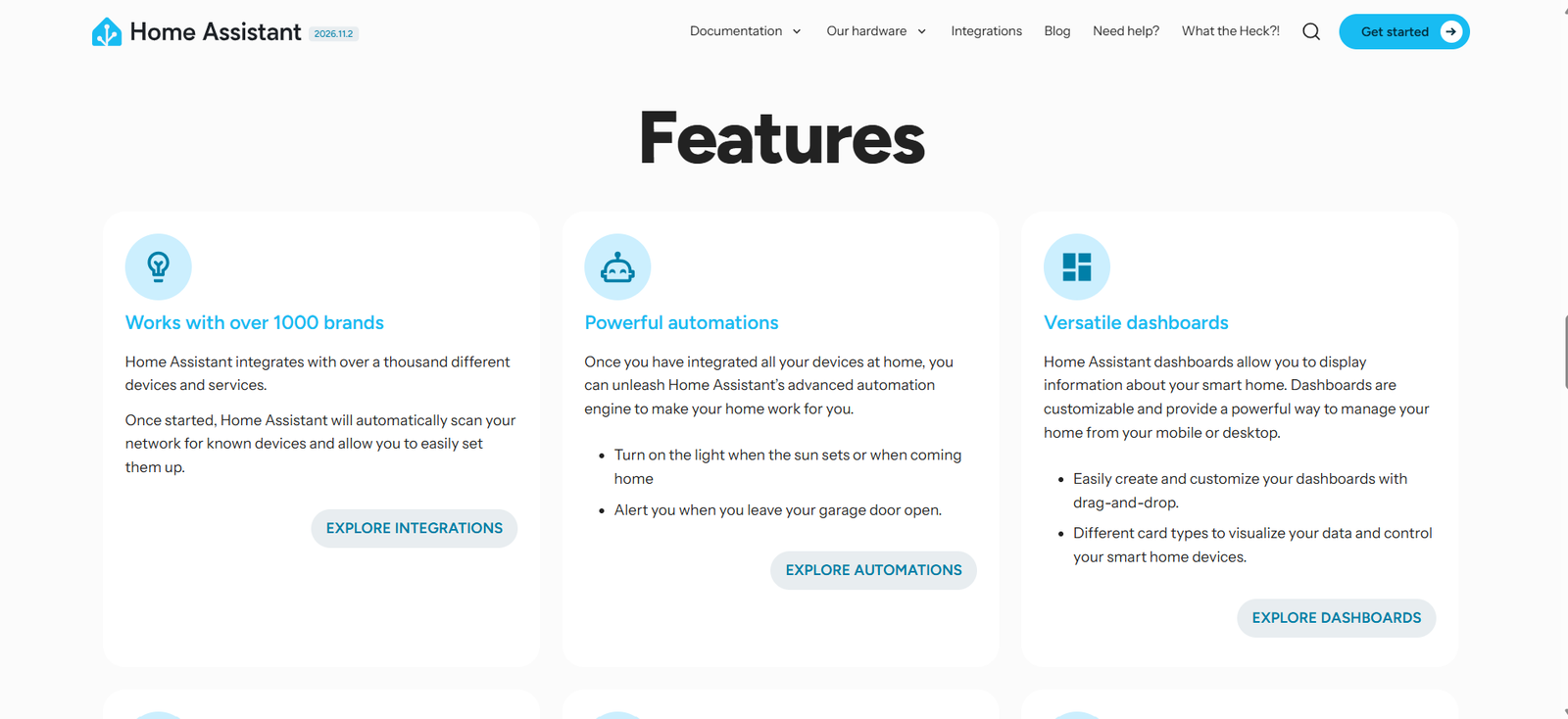
A non-profit, the Open Home Foundation, runs the project. Home Assistant Green is the plug-and-play choice. Home Assistant OS also installs on a Raspberry Pi 4 or 5 with at least 2 GB of RAM, an x86-64 PC, or a virtual machine, which suits most people building their own setup.
Green costs more than it used to. Nabu Casa announced an increase in January 2026, then raised the suggested retail price again on April 24, 2026, to $199 or €179.
The subscription is the paid piece. Nabu Casa announced that Home Assistant Cloud is renamed Home Assistant Link in release 2026.12, dated December 2, 2026. Same subscription, new label, so this guide says Link throughout, and older screens may still read Cloud. The pricing page lists $6.50 a month or $65 a year in USD, tax not included, with a 31-day trial and no card required. Prices vary by region, and there’s no lifetime plan, one-time fee, or student discount.
| Item | Required? | Cost |
|---|---|---|
| Home Assistant software | Yes | Free |
| Hardware to run it | Yes, you supply it | Green: $199 or €179 MSRP; Raspberry Pi, PC, and VM costs vary |
| Home Assistant Link | No | $6.50 a month or $65 a year after a 31-day trial |
| Voice Preview Edition | No | $69 or €59 MSRP |
Link has no cheaper tier. If you only want remote access, the free routes below cover that at no cost.
How Does Home Assistant Voice Control Work?
Assist turns speech into text, matches it against built-in sentences or an AI model, runs the action, and speaks a reply. Each stage can run at home or through Link, and your hardware decides how much of that can stay home.
Three tiers cover most homes:
| Tier | Hardware | Speech setup | What to expect |
|---|---|---|---|
| 1 | Home Assistant Green or Raspberry Pi 4 | Speech-to-Phrase plus Piper | Replies in under a second, but only to predefined home-control sentences. Shopping lists, timer names, and broadcasts don’t work out of the box. |
| 2 | Intel N100-class mini PC or stronger | Whisper plus Piper, optionally a local AI model through Ollama | Understands free-form speech. Whisper takes under a second on an Intel NUC but about eight seconds on a Pi 4. |
| 3 | Any of the above | Home Assistant Link | Simplest route, and Link keeps no record of your voice or commands. |
Does Assist Listen All the Time, and Where Does Your Voice Go?
No. A wake word model waits for one trigger phrase before Assist does anything else. Voice Preview Edition runs wake words on the device, and the Android app does the same on your phone. Setups that detect the wake word on the Home Assistant server keep that step on hardware you own.
After the trigger, the pipeline above takes over. Link sends speech to Microsoft Azure, which doesn’t retain it, while a local pipeline stays on your network.
How Fast Is Assist, and What Slows It Down?
Native sentence matching feels instant, so the waits come from speech recognition and AI models. Hardware sets the speech delay, as the tiers above show, and a cloud AI model adds its own round trip on top.
That round trip varies with the provider and the size of your prompt. Users report several seconds for cloud models, often four to eight. A smaller local model or a provider tuned for fast first tokens cuts the wait, and the local-first setting described in the AI section keeps simple commands off that path.
Did the 2026.11 Naming Change Break Your Voice Commands?
No. Since 2026.11, Home Assistant labels each entity with its device name plus its own name, so a Temperature entity on a Thermostat reads as Thermostat Temperature. A relabeled entity keeps its old name as a voice alias, so phrases like turn on the ceiling light keep working.
Entity IDs don’t change, so automations and dashboards survive. A Main entity of the device toggle gives one entity the device name alone, while the rest read Device plus Entity. Renaming a device relabels all its entities, while renaming one entity touches only that entity. The release is backward-incompatible for cards, badges, and rows that never had a custom name, because they now show the device name first. The 2026.11 release notes also plan to deprecate friendly_name in templates.
What Commands Can You Say to Assist?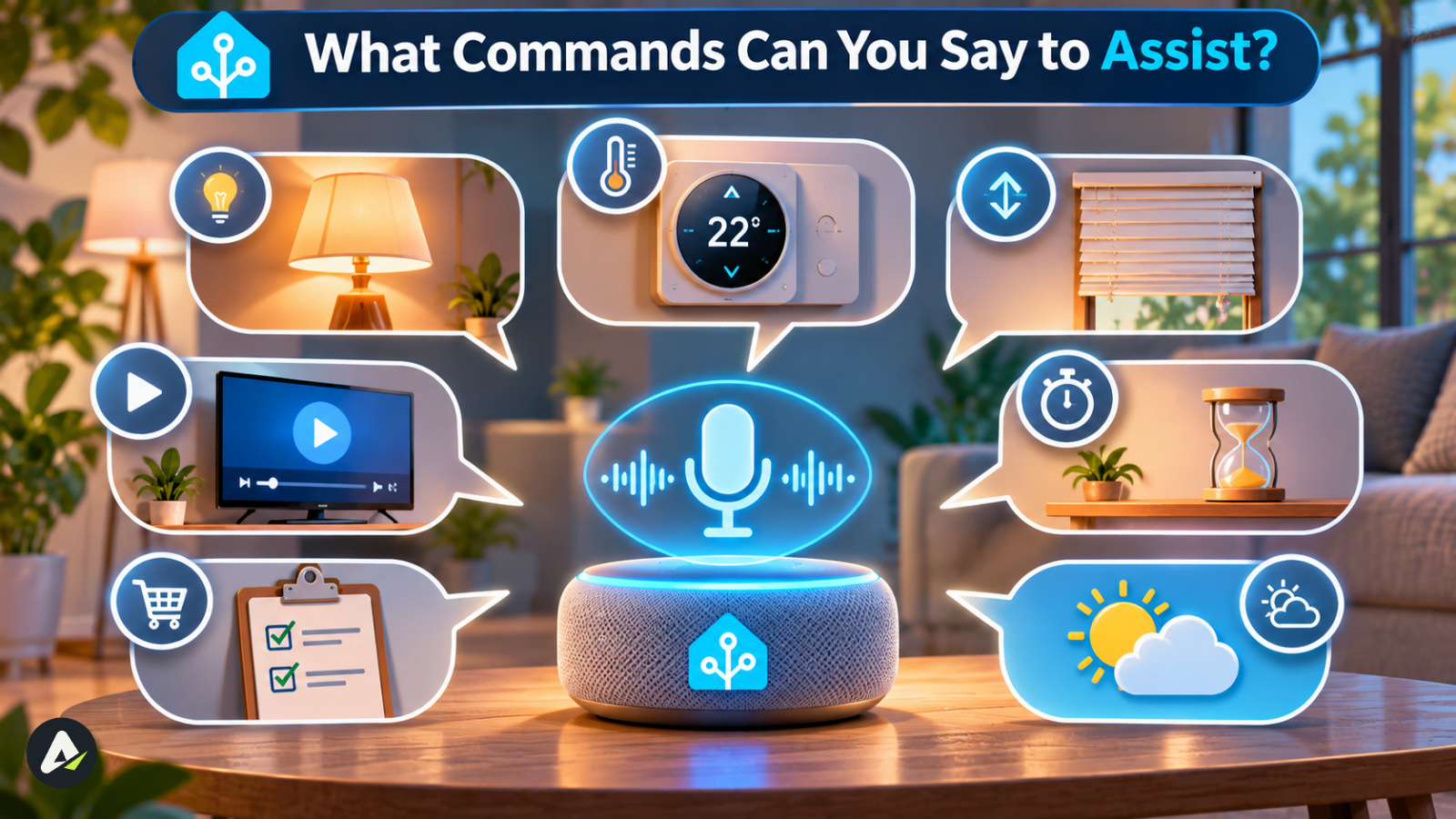
Assist understands built-in sentences for lights, fans, covers, climate, media players, timers, lists, and weather. A command names a device, an area, or both, such as turning on all the lights in the living room.
These examples come from the built-in sentences page:
| Category | Example command |
|---|---|
| Lights | Set bed light to green |
| Fans | Set kitchen fan speed to 50% |
| Covers | Close the garage door |
| Climate | What is the temperature in the living room? |
| Scenes | Activate dinner scene |
| Media player | Volume up |
| Vacuum | Clean the living room |
| Lists | Add bread to my shopping list |
| Weather | What’s the weather like in London? |
| Timers | Set a timer for 5 minutes |
| Delayed action | Turn off the lights in the living room in 5 minutes |
| Broadcast | Broadcast that dinner is ready |
| Cancel | Nevermind |
Three details trip people up. Delayed commands can’t be canceled, paused, or changed, unlike true timers. Timers need a voice satellite that supports them: Voice Preview Edition does; the on-screen Assist dialog doesn’t. And a custom sentence you write beats a built-in one, because sentence triggers run first.
When Assist says it couldn’t understand you, rephrase, use the exact device and area names, or add aliases. The sentence parser under Settings > Tools > Assist tests a phrase without running it.
To run an automation from your own phrase, create an automation under Settings > Automations & Scenes and pick Sentence as the trigger. The YAML version looks like this:
trigger: conversation
command:
  - "[it's ]party time"
  - "happy (new year|birthday)"
How Do You Set Up Assist in Home Assistant?
Open Settings > Voice assistants, expose the devices Assist should control, and add an assistant with a voice pipeline.
- Expose your devices. On the Assist card, select the exposed-entity count, then Expose entities. Lights, switches, fans, covers (garage doors and gates included), climate controls, media players, and scenes go in automatically, so remove any you don’t want voice to touch. Locks, alarm panels, and scripts stay hidden until you add them by hand. Judge each device by how reversible a mistake would be, the same factor an agent risk score weighs.
- Name things the way you speak. Pick spoken names for devices and areas, and add aliases for nicknames or other languages.
- Pick your tier. Select Speech-to-Phrase, Whisper, or Link.
- Create the assistant. Select Add assistant, then set its name, language, conversation agent, and speech engines. If no assistants appear, add
assist_pipeline:to configuration.yaml. - Test it. Type a command into the Assist dialog. The assistant’s Debug view shows what Assist heard and did.
How Do You Use Home Assistant Assist on Android?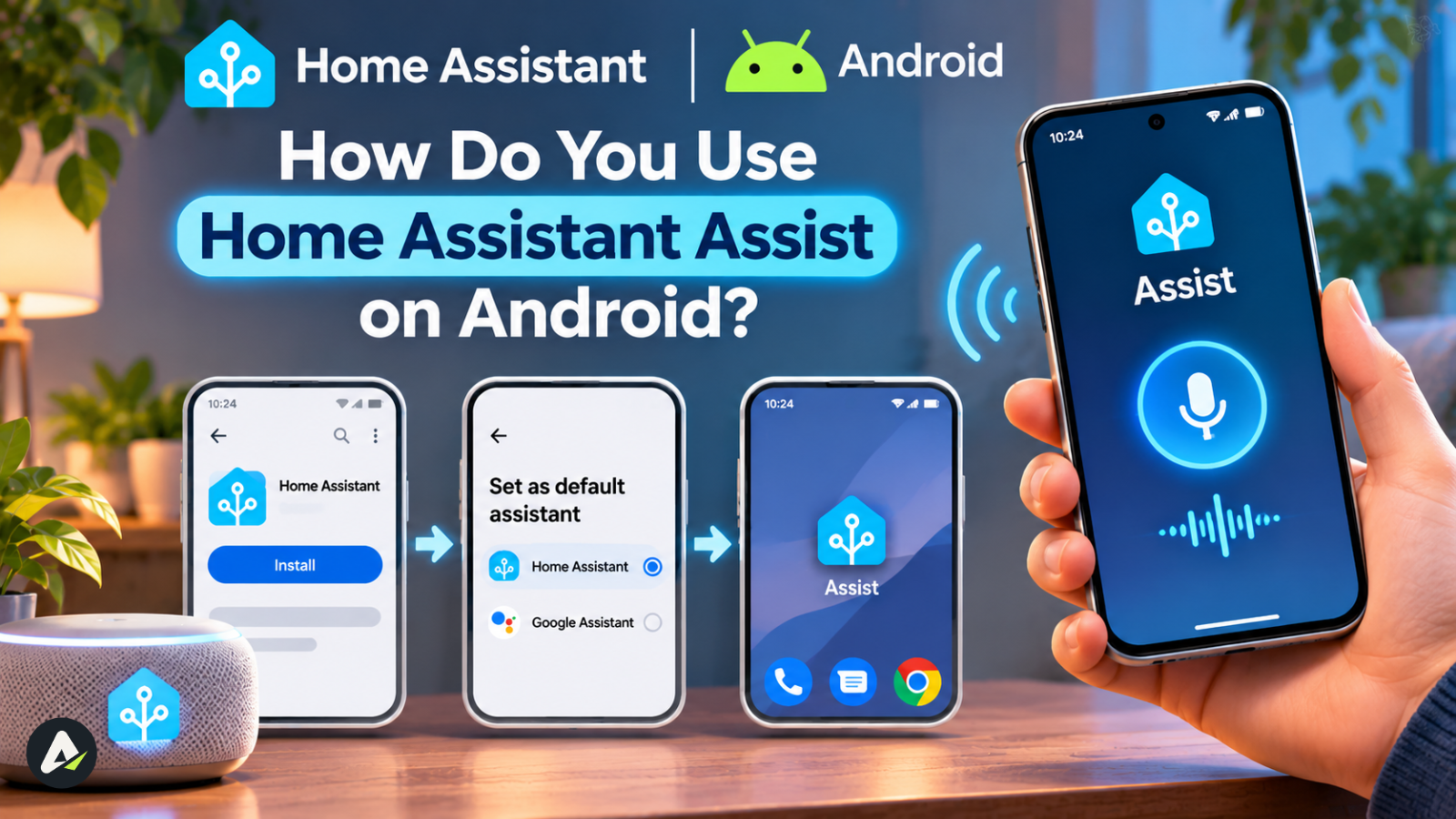
Install the Companion app, then open Settings > Companion app > Assist for Android and select Set as default. Your system gesture, such as a power-button long press, now opens Assist, even from the lock screen. Gestures vary by Android version.
Android holds one default assistant slot, so this swap sends the gesture to Assist instead of Gemini. You can also open Assist from the app’s three-dot menu, or drag the Assist widget to your home screen and tick Start listening to talk right away.
Wake word detection needs Companion app 2026.2.3 or later, Assist as the default, and either Link or a local pipeline you built yourself. The wake words match the on-device models covered in the Voice section below, though Android spells the first one Hey Nabu. The feature is experimental and burns more battery than Google’s own hotword, because the processor stays awake. Detection runs on the phone without internet, but the command still has to reach your Home Assistant.
Wear OS watches get an Assist tile, a watch face complication, and an optional hardware-key shortcut. Those steps were written for Wear OS 4.0, so menu names may differ on your watch.
How Do You Use Home Assistant Assist on iPhone?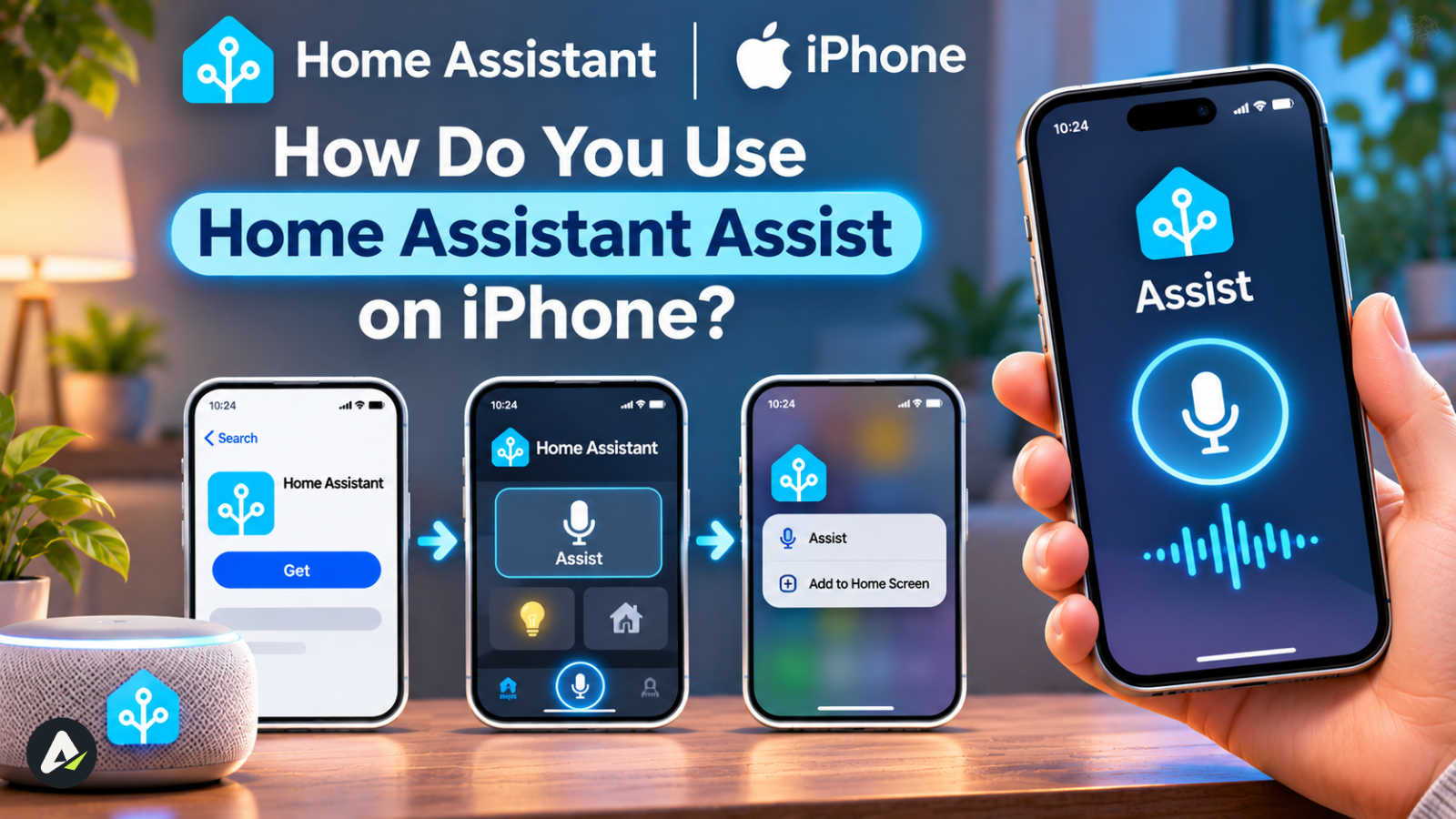
Install the Companion app, build one shortcut in Apple’s Shortcuts app. It powers the Action button, Back Tap, Control Center, and Lock Screen. The steps target iOS 18, so menus may differ on your phone.
Set up the assistant and expose your devices first. Then open Shortcuts, tap New, search for Home Assistant, choose Assist in app, and select your pipeline. To send typed text from inside a longer shortcut, use the Assist prompt action instead, which returns Assist’s reply to the next step.
Siri-launched shortcuts always use Siri’s language, so a bilingual household needs one shortcut per language.
For spoken launches, Accessibility > Voice Control lets you record a custom spoken command, such as Okay Nabu, that runs the shortcut. It runs slower than Siri or a hardware button, and full voice navigation stays active, so it can fire other commands by accident.
Is There a Home Assistant Assist App, and How Do You Launch It Fast?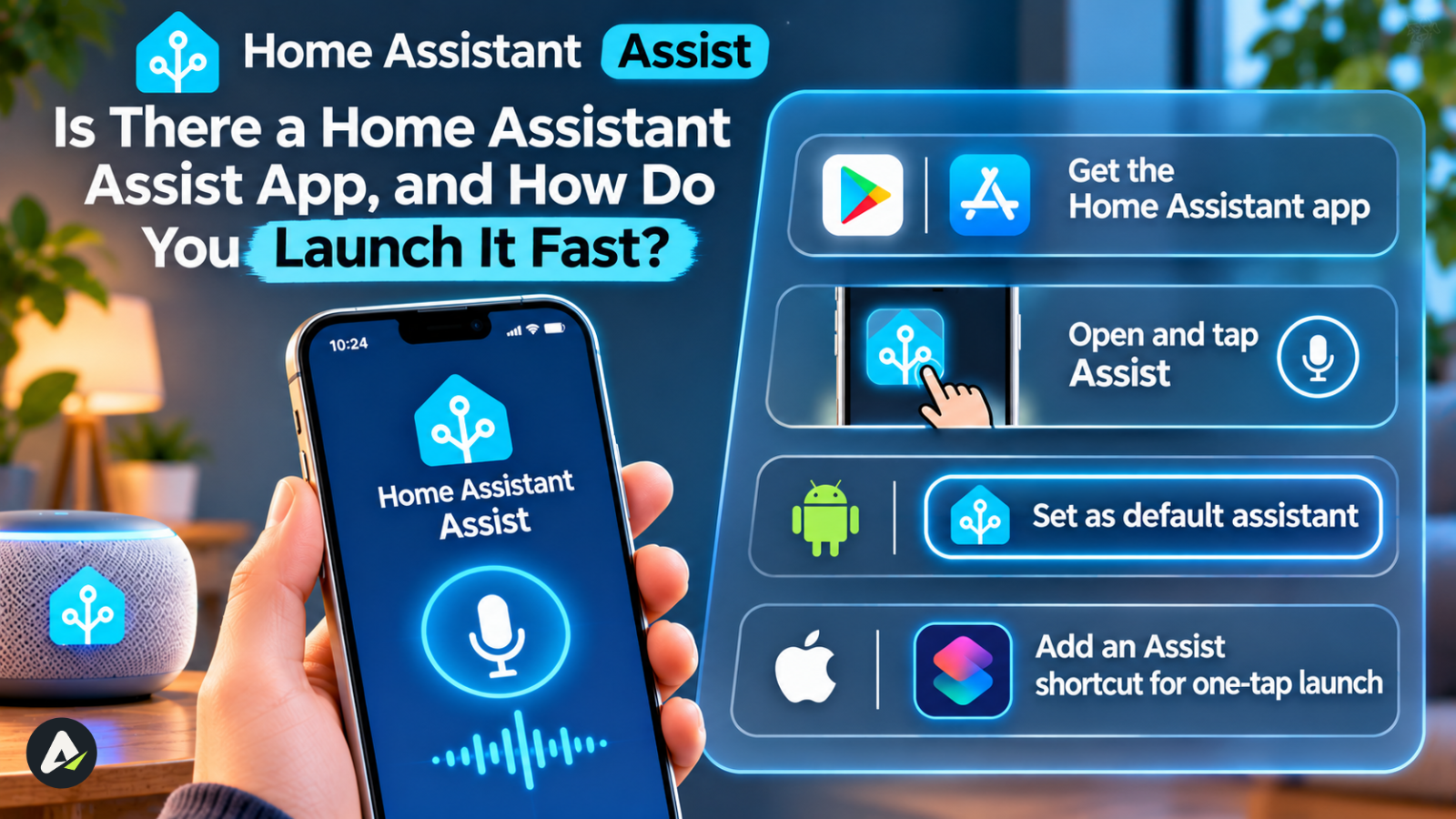
Assist doesn’t ship as a standalone app. It lives in the official Companion app for Android and iOS and in the web dashboard. You launch it with an icon, a gesture, a widget, a button, a wake word, or the A key.
| Where | How to start Assist |
|---|---|
| Web dashboard | Select the Assist icon at the top right, or press A (the window needs focus and Assist must be set up) |
| Wall tablet or kiosk | Add a Button card with its tap behavior set to Assist, and enable Start listening for voice |
| Phones and watches | Use the shortcuts from the Android and iPhone sections above |
| Voice hardware | A wake word |
The Companion app can also map a swipe gesture to Open Assist, and it sends your location to your Home Assistant for presence automations.
What Is Home Assistant Voice?
Home Assistant Voice is Nabu Casa’s dedicated speaker for Assist, officially named Voice Preview Edition. It needs a Home Assistant installation to work. The official product page lists $69 USD or €59. It launched at $59 in December 2024.
Its XMOS XU316 audio chip pairs with two microphones to cancel echo, strip steady background noise, and level your voice. Around it sit a physical mute switch that cuts power to the microphones, a button, a rotary dial, and an LED ring.
Buyers often ask whether it can play music. Its internal speaker handles alerts and spoken replies only. For music, plug an external speaker into the stereo 3.5 mm jack, which runs through a TI AIC3204 DAC at 48 kHz, and let Music Assistant control playback.
It needs a 5 V, 2 A USB-C supply, and neither charger nor cable comes in the box. It connects over 2.4 GHz Wi-Fi and suits indoor use between 0 and 30 °C.
Three wake words run on the device itself: Okay Nabu, Hey Jarvis, and Hey Mycroft. Smaller ESPHome satellites can do the same: the ESP32-S3-BOX-3 runs the microWakeWord engine on-device, and the ATOM Echo supports many of the speaker’s features, including media playback and continuing conversations, after recent firmware optimizations. For speech processing, follow the hardware tiers earlier in this guide.
The Preview label is deliberate: the launch post aims to match existing voice assistants and then surpass them, so expect the software to keep changing. If you need polish today, test it in your language first.
Can Assist Talk Like ChatGPT or Gemini?
Yes, once you connect an AI conversation agent. Home Assistant supports cloud services such as OpenAI, Anthropic, and Google Gemini, plus local models through Ollama. With Prefer handling commands locally switched on, the native agent takes simple commands first, and the AI handles only what it can’t match. Deciding whether a task suits an agent comes down to how variable it is and what a mistake costs, so lights and timers stay on native sentences while open questions go to the AI. Under the hood, the model chooses a tool at each step, the same loop that dynamic AI agents follow.
Add the AI integration, then create an assistant under Settings > Voice assistants and select Device control under AI tools. Ollama needs one extra step: you add its conversation agent by hand, and the model must support tools. Turn that option off and every request goes to the AI, which answers more slowly.
Cost and privacy depend on the provider. Home Assistant’s Gemini integration has a free plan, and cloud providers process your prompts on their own servers. Running Ollama at home keeps everything on your network.
Warning: the Device control tool set bypasses exposure. A conversation agent using it can reach every entity, including ones you left unexposed, so hiding a garage door from Assist won’t keep the agent away from it. Treat anything the agent reads from outside sources as data, not commands, much like an agent weighing hidden instructions on web pages.
How Can You Access Home Assistant Remotely for Free?
Use a VPN or a Cloudflare Tunnel. Tailscale’s Personal plan is free for non-commercial use, and a tunnel runs through a free Cloudflare account, though you need a domain name. Link is the paid shortcut. Port forwarding is the last resort, because an open port alone isn’t secure.
| Method | Cost | Catch |
|---|---|---|
| Home Assistant Link | Paid, as priced earlier | No router changes |
| Tailscale VPN | Free Personal plan, up to six users | You connect to the VPN first, and the Companion app’s sensors stop updating while it’s off |
| Cloudflare Tunnel (Cloudflared app) | Free Cloudflare account, plus a domain you buy | No VPN toggle and no open router ports, but setup takes longer |
| Port forwarding with DuckDNS | DuckDNS is free | Dynamic or shared (CG-NAT) addresses from your internet provider can cut access |
Tailscale is the quickest free route to try. Its own Home Assistant walkthrough, updated in July 2026, shows how to install the Tailscale app inside Home Assistant. Home Assistant’s remote access guide covers the remaining options in depth.
Cloudflared is a community-maintained Home Assistant app.
Remote Assist works only while the remote route does.
Can Assist Replace Alexa?
Partly. Home Assistant can hand its devices to Alexa through Link or a manual smart home skill, but Alexa speakers don’t act as Assist satellites. To replace an Echo, you’d put Assist on phones, tablets, or Voice Preview Edition instead. Multi-room is where the gap shows. Assist can broadcast to other satellites, and Music Assistant adds music playback on supported players, but the speaker itself suits replies rather than music, so music rooms need external speakers. Some users with several satellites in quiet rooms report the wrong one answering.
The Alexa route has two forms. Link connects your instance in a few clicks and requires a paid subscription after the trial. The manual route needs an Amazon Developer account, an AWS account for the smart home skill, and an instance reachable over the internet. AWS Lambda is free for up to 1 million requests a month.
One default differs by assistant. Newly added entities are exposed to Assist automatically but stay hidden from Alexa and Google until you opt in. That makes Assist the looser setting out of the box.
Is Google Assistant Free, and How Does It Compare?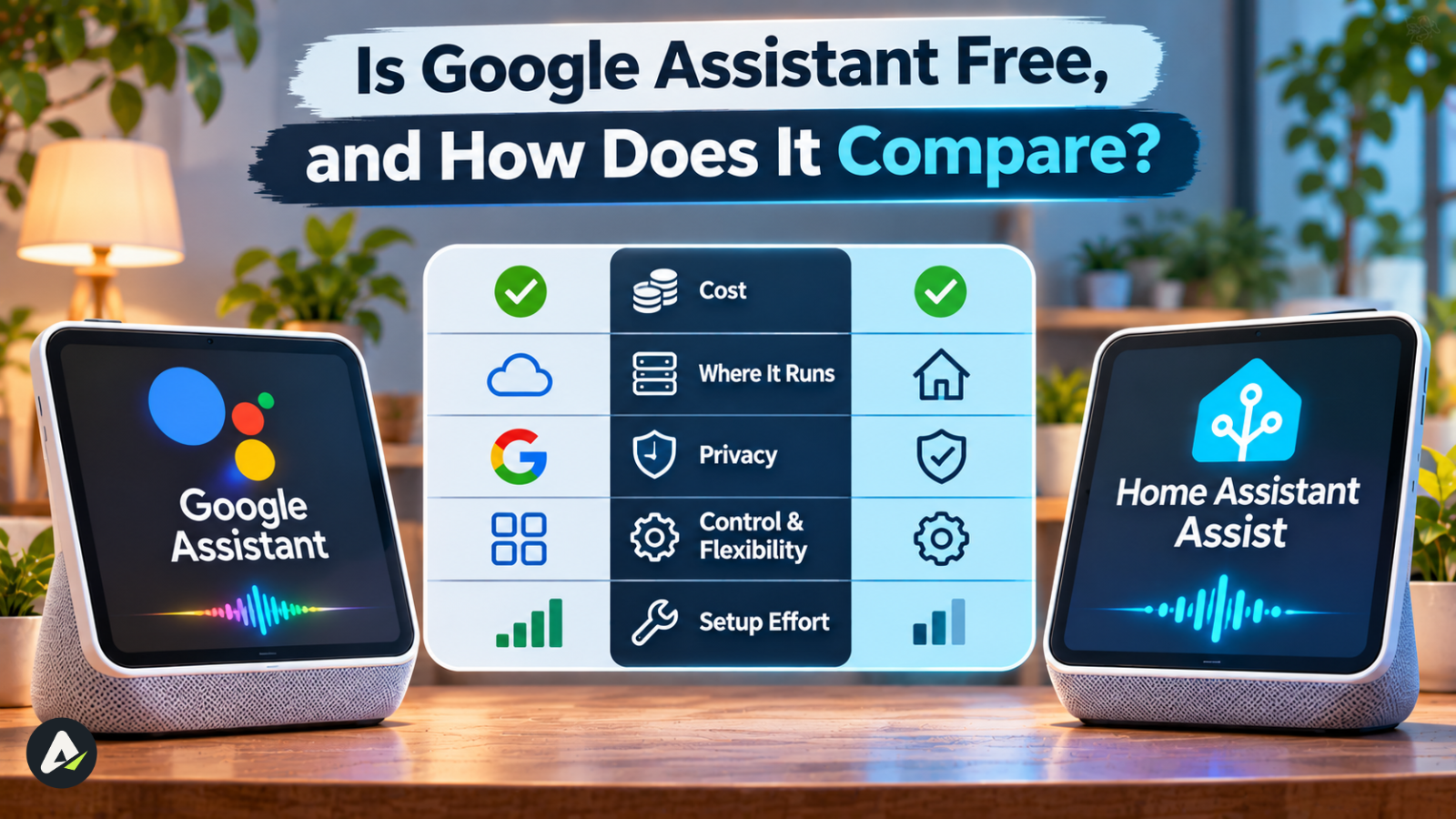
Google Assistant itself was free, but its removal from Android phones began on September 4, 2026, and takes weeks to finish. On Google Home speakers, Google says core features like device control, timers, and questions are free, while Gemini Live needs a Google Home Premium subscription.
The cutoff reaches beyond phones: Wear OS watches, compatible headphones, and Android Auto projected from a phone follow the phone’s choice, while cars with Google built-in keep Assistant. Phones that miss Gemini’s requirements or sit in unsupported regions can keep Assistant for now. 9to5Google’s September 28 report says the Gemini app no longer offers a way back to Assistant, and Nest and Google Home speakers haven’t changed yet. Google Home Premium Standard launched at $10 a month or $100 a year in October 2025.
Home Assistant still works with Google’s ecosystem. Link handles the connection, while the manual route needs a public HTTPS address, a Google Home Developer Console project, and a service account key.
The practical difference is where processing happens. Assist can run on your own hardware, while Gemini runs on Google’s. Assist suits people who value local control and accept some setup. Anyone who wants open-ended answers with zero configuration may find Gemini simpler.
What Limits and Risks Should You Know Before Relying on Assist?
Two limits matter most before you hand Assist real responsibility.
- Satellites aren’t signed in. Nothing identifies the speaker, so AI tools restricted to administrators fail. Enterprises close the same gap with agents tied to named users.
- Not every device is local. Home Assistant talks to devices locally and pulls cloud data only when nothing else works, so a cloud-only gadget still depends on its maker’s servers.
None of this is a reason to skip Assist. Start with lights and media, add sensitive devices later, and revisit the exposure screen once a month. Narrow access is also how companies handle agents that hold cloud access: grant only what the job needs.
FAQs
Q. Will the Link rename change my price or subscription?
No. Nabu Casa treats it as one subscription under a new label.
Q. Does Assist work offline?
Yes, with a local pipeline. Processing stays at home, and you only need a connection to your Home Assistant.
Q. Do I need a microphone to use Assist?
No. Type commands into the Assist dialog on the dashboard or in the Companion app. A phone, tablet, or voice speaker adds spoken input.
Q. How do I switch back from Assist on Android?
Pick another default, or None, under Settings > Apps > Default apps > Digital assistant app. The same setting also disables Assist if the app becomes unresponsive.
Q. Can Assist work with more than one Home Assistant server?
Yes. On Android, add each server in the Companion app and choose its assistant from the drop-down. On iPhone, the shortcut asks which server to use unless you edit it.
Related: Is Zanus AI a Good Voice Agent for Small Businesses?
| Disclaimer: This guide is for educational and informational purposes. This guide is independently written and is not affiliated with Home Assistant, Nabu Casa, or the Open Home Foundation. Features, pricing, and availability may change. |

Kavin Reed
As AI agents move from experimental demos into everyday workflows, the questions around how they work, where they fit, and what happens when they fail are becoming harder to ignore. Kavin Reed writes about AI agents, automation, and the systems behind them, with a focus on practical adoption and real-world impact. His work examines the ideas, trends, and technical developments shaping how businesses and people use increasingly capable AI systems.
More from Kavin Reed →